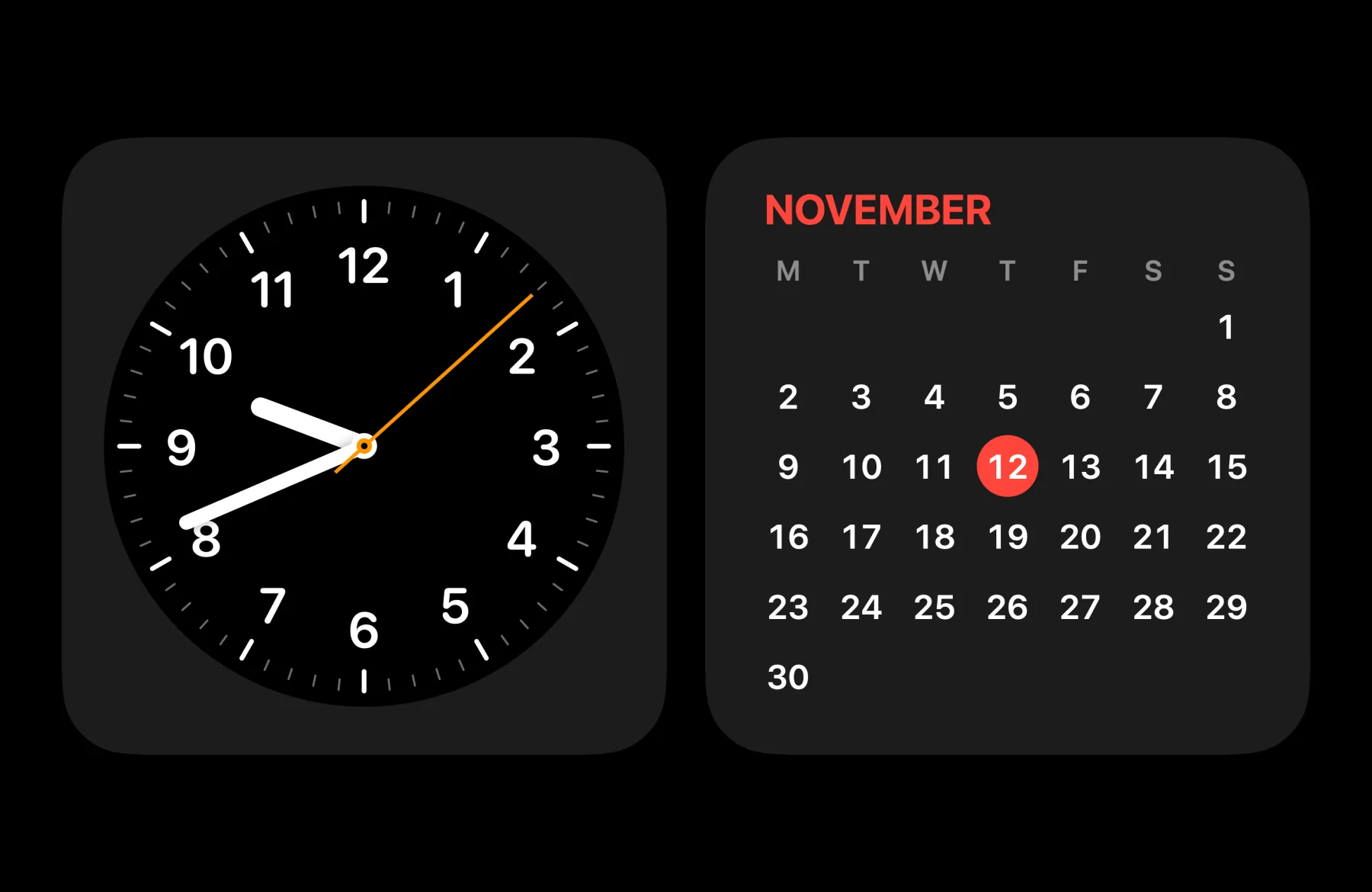
Three pages, a swipe apart.
StandBy has three pages. Swipe left and right with two fingers to move between them, and up and down to change what’s on the page. Move the pointer and arrows, page dots, Customise and Exit appear; leave it and they fade away again.
- Widgets
- Two large stacks side by side. Each can hold Clock, Digital Clock, Calendar, Up Next, Weather, Battery, Now Playing and Photo, and you scroll through each stack on its own.
- Photos
- A slowly zooming slideshow of the photos you choose, changing as often as you like.
- Clock
- One of five full-screen clock faces, below.
Five clock faces.
Digital and Analog come in nine colours. Solar and Float take gradients of their own, such as Sunrise, Aurora and Ember. World follows the sun instead.
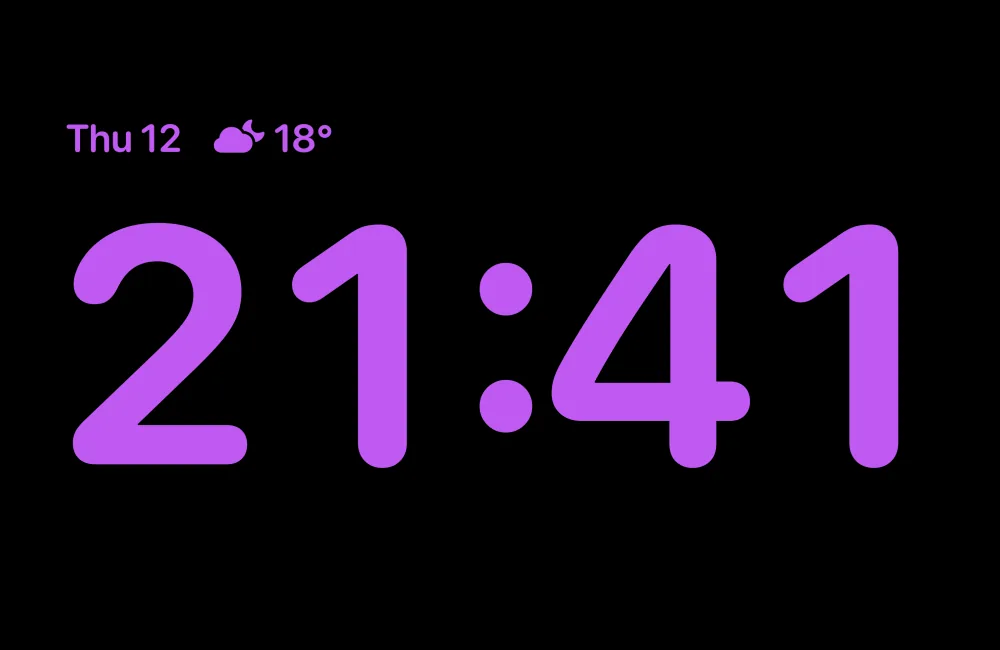
Digital. Big numerals with the date and temperature. 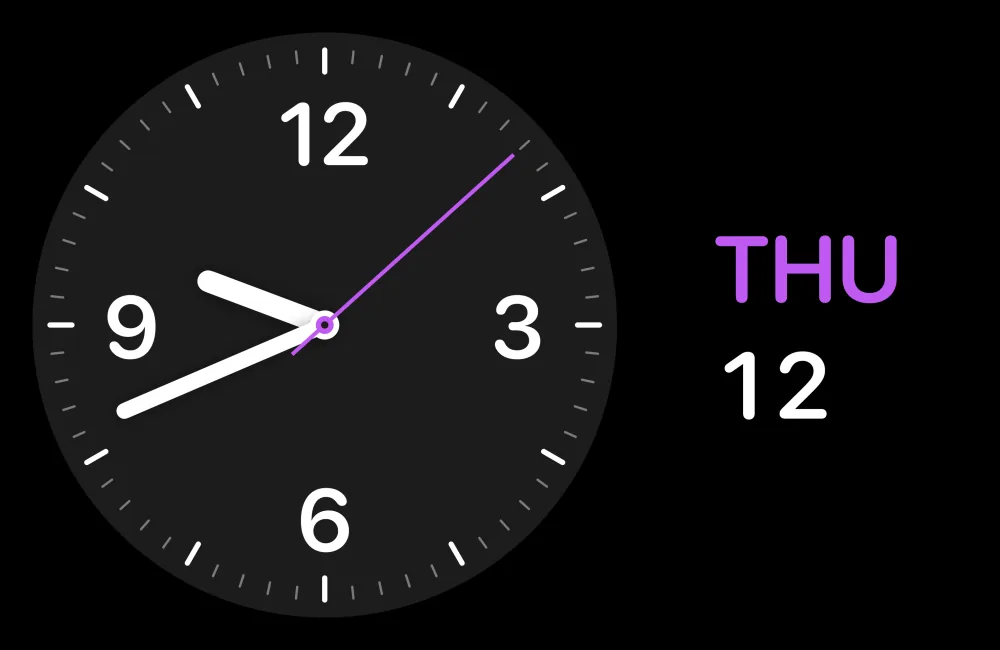
Analog. A dial with a sweeping second hand. 
World. Where it is day and night right now. 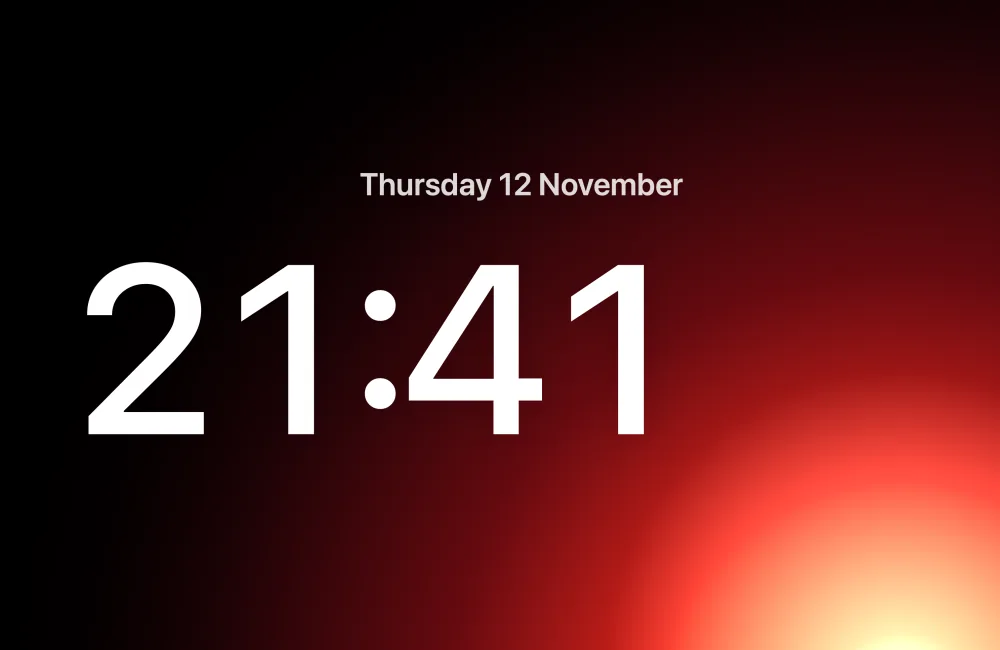
Solar. A sun that crosses the screen through the day. 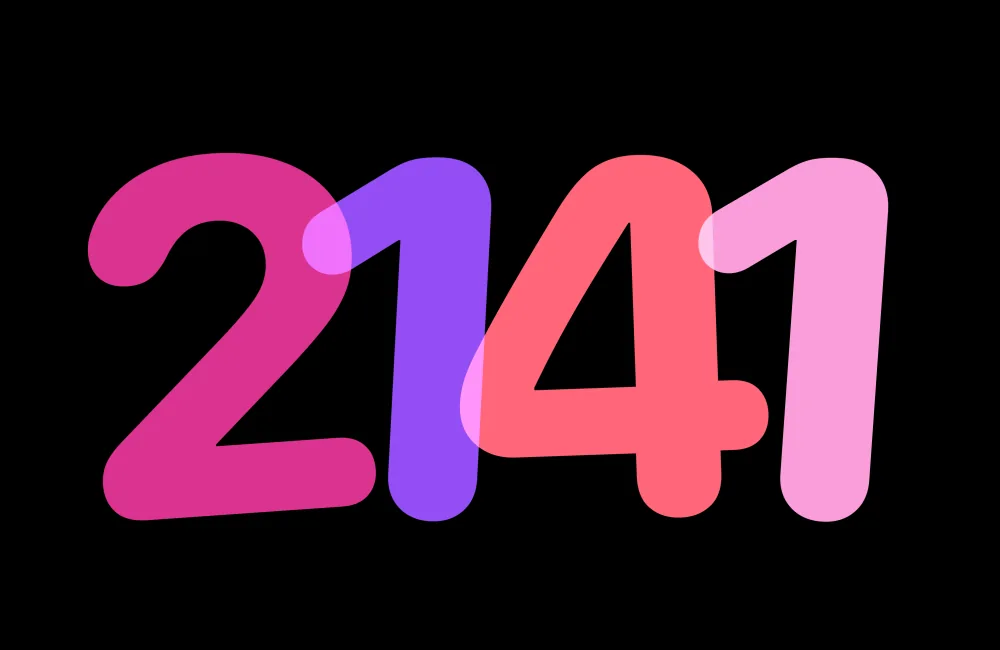
Float. Bubble digits that roll in each minute.
It starts when your Mac charges.
Turn on Start StandBy when charging and StandBy appears by itself whenever your Mac locks while it’s plugged in, like an iPhone on its charger. Or let it replace the Lock Screen every time, and exit it when you want your widget layout. With neither, a clock button in the bottom-right corner of the Lock Screen starts it whenever you like.
Your displays stay on while StandBy is showing. Show it on this Mac’s display, an external display, or all of them. With the lid closed, StandBy uses your monitor.
Night Mode, for the bedside.
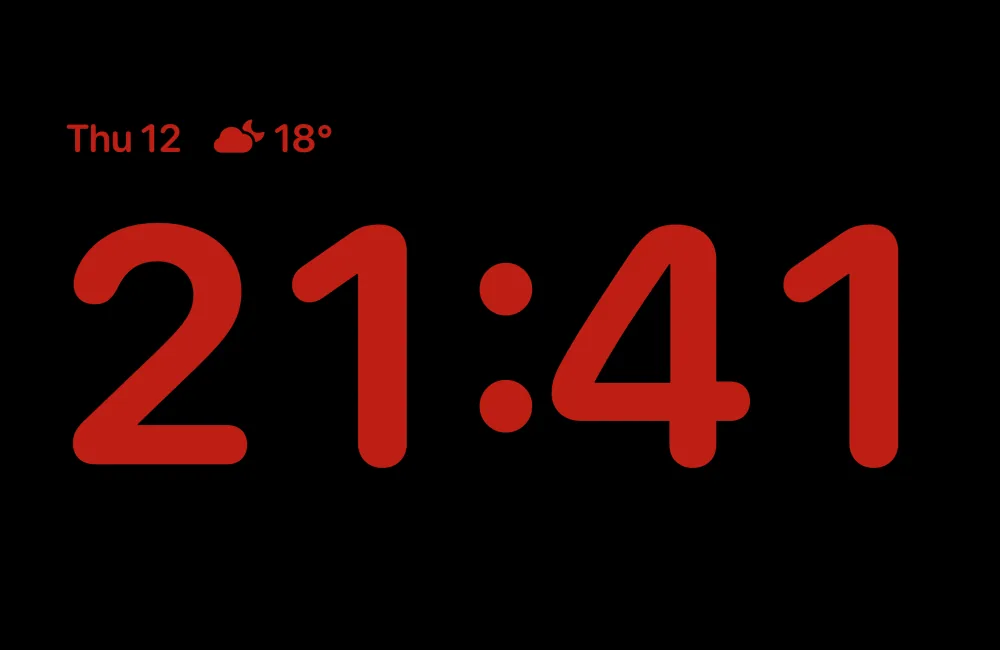
Between sunset and sunrise, Night Mode turns everything a dim red, so a clock on your bedside table tells the time without lighting up the room.
Your music, full screen.
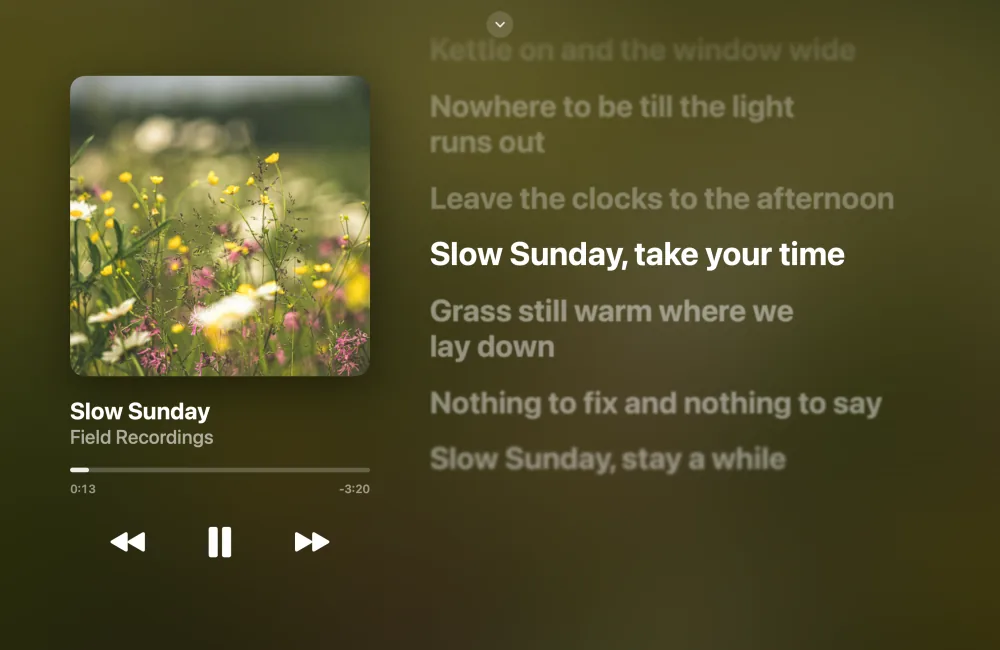
While a song plays, a pill appears at the top of StandBy. Click it for a full-screen player with big artwork, playback controls and synced lyrics that follow the song. Lyrics are optional: to find them, the track title and artist are sent to LRCLIB. For music on the regular Lock Screen, see Now Playing and Live Lyrics.
How to turn on StandBy on a Mac.
- Install and open WidgetScreen on macOS 15 or later, and unlock Premium.
- Open Settings › StandBy. Turn on Start StandBy when charging, Show StandBy button on the Lock Screen, or both.
- Lock your Mac with Control–Command–Q. Plug in your charger, or click the clock button in the bottom-right corner.
- Press and hold anywhere in StandBy to customise the page on screen: the clock and its colour, the widgets in each stack, or which photos to show and how often they change.
Settings › StandBy also previews every screen, so you can see each one before you buy. The lock screen setup guide covers the rest of WidgetScreen.
What’s included?
StandBy is part of WidgetScreen Premium, a one-time purchase for up to 3 Macs, with no subscription. WidgetScreen itself is free, with weather, music, photo and calendar widgets for your Lock Screen.
If you know StandBy on iPhone, it will feel familiar. StandBy shows only while your Mac is locked; it needs no WidgetScreen account. See the privacy policy for more detail.