Start with the built-in macOS options.
In System Settings, open Wallpaper to choose a picture, colour or aerial scene. You can use an image from your files or Photos library. In macOS Tahoe, Wallpaper settings also include Clock Appearance, where you can choose where the large clock appears and adjust its font and weight. Available controls differ by macOS version.
Use Lock Screen settings for inactivity and password options. A screen saver and a locked Mac are not the same thing: keep the password requirement appropriate for your setup.
Apple documents wallpaper choices, Tahoe clock appearance and Lock Screen settings. Use those controls first if all you need is a different background or clock.
Choose the right kind of widget.
Apple’s built-in Mac widget system covers the desktop and Notification Centre. WidgetScreen is a separate macOS app for putting its own widgets on the lock screen and screen saver.
| What you want | Where to start |
|---|---|
| A new wallpaper or native clock style | macOS System Settings |
| Widgets while you work on the desktop | The built-in macOS widget gallery |
| Music, weather or photos while your Mac is locked | WidgetScreen’s free core widgets |
| Live Lyrics or Sticky Notes on the lock screen | WidgetScreen Premium |
WidgetScreen’s widgets appear when the Mac locks and disappear when you sign in. Keep the app running in your user session; this guide covers locking a signed-in Mac.
Add widgets with WidgetScreen.
- Install the app. Download the disk image, move WidgetScreen to Applications and open it. It supports macOS 15 Sequoia and later on Apple silicon and Intel Macs.
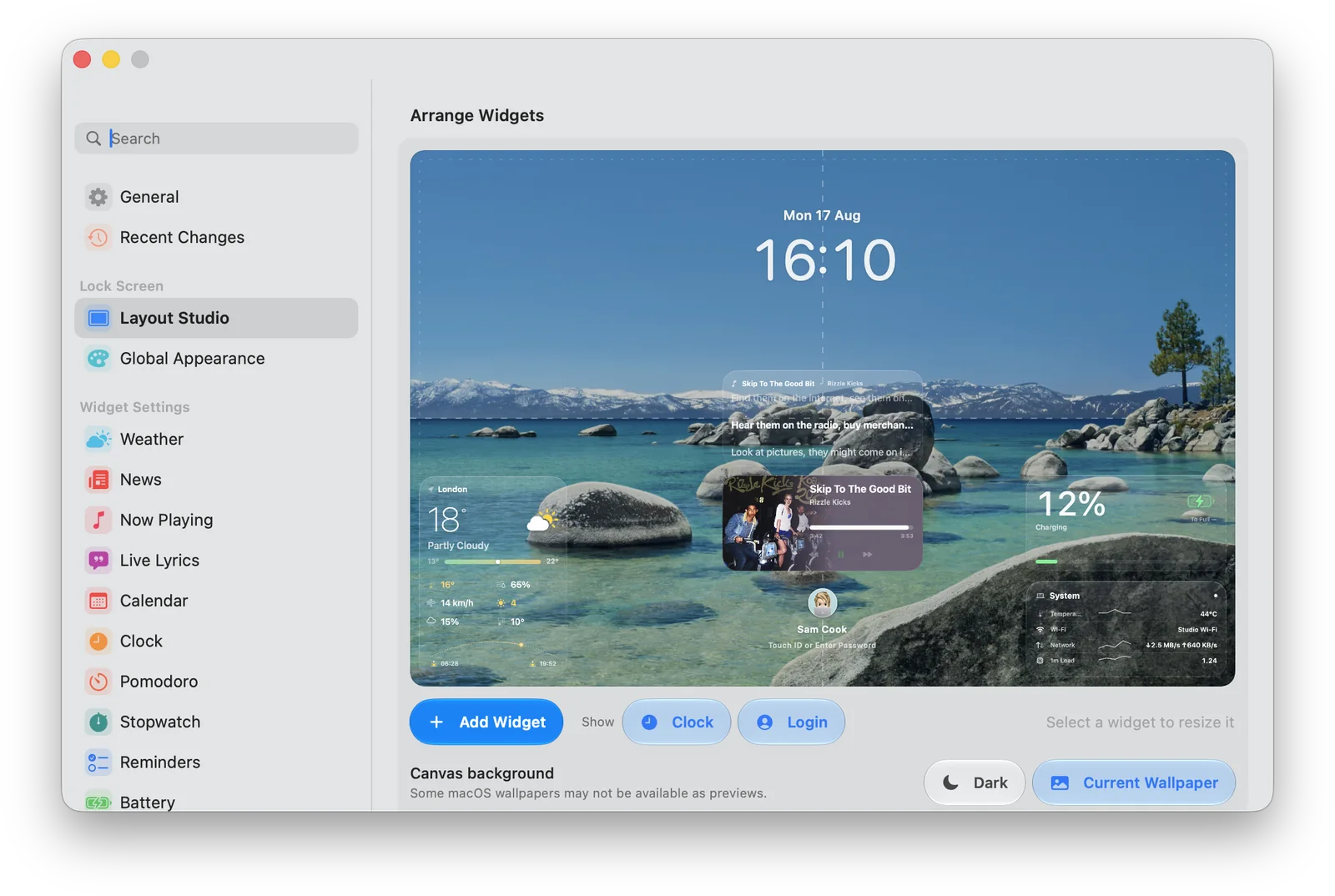
- Start with two or three widgets. In Layout Studio, add what you will actually glance at. Weather and Calendar suit the next morning; Now Playing suits a listening session.
- Arrange them on the preview. Pick sizes, drag widgets into position and adjust each widget’s settings. Keep the native clock, user picture and sign-in area clear.
- Connect only what you use. Grant the permission needed by a chosen widget. Lock-screen placement does not need Screen Recording permission; the optional Audio Visualiser uses Screen & System Audio Recording access for sound analysis.
- Check the locked screen. Press Control–Command–Q. Look at text contrast, spacing and how much of the wallpaper is visible. Unlock to adjust the layout.
- Keep it available. Enable Launch at Login so WidgetScreen starts after you sign in.
Three setups worth trying.
A quiet work setup
Use Calendar, Weather and a small clock. If you have Premium, add a Sticky Note for the one thing you want to remember when you return. Notes are created in WidgetScreen; they are separate from Apple Notes.
A music setup
Give Now Playing enough room for the album cover. Add the free Audio Visualiser for motion or Premium Live Lyrics for the words. Keep other widgets small so the song remains the focus.
A personal photo setup
Use a single photo or diptych over a simple wallpaper. Choose photos with a similar palette and leave some empty space between the pictures and the clock.
If the widgets do not appear.
Confirm WidgetScreen is running, then lock the Mac again. Check the selected display and the settings or permissions for the missing widget. For music or lyrics, confirm playback is active in the selected source. If you still need help, email Sam with your macOS version and the widget involved.
The core widgets are free. Live Lyrics, Sticky Notes and additional appearance and layout controls require the optional one-time Premium purchase.