Keep a small reminder in sight.
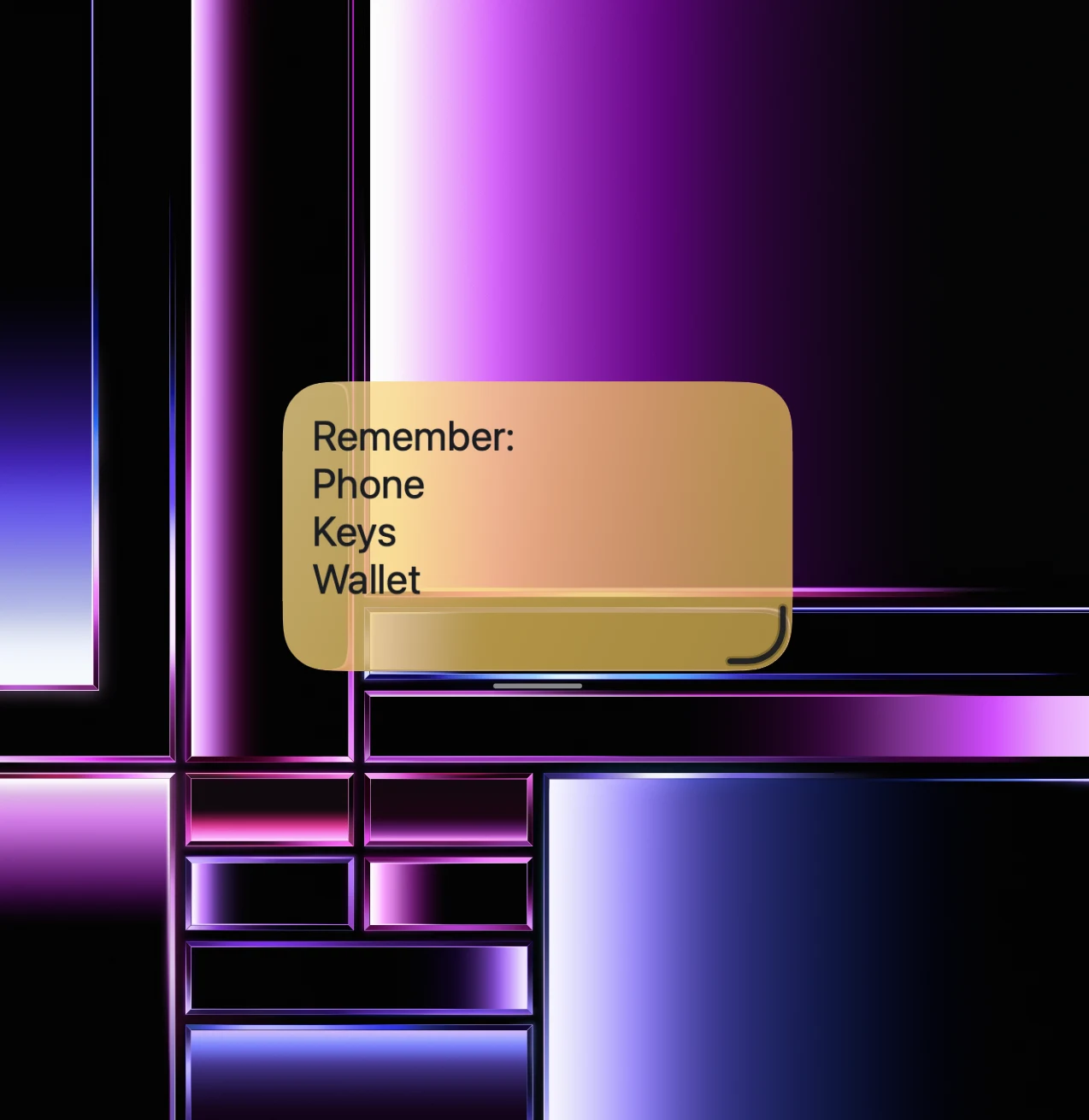
Some notes only need a few words. “Phone, keys, wallet” before you leave. The first task for tomorrow. An idea you want to keep until you return to your desk. Sticky Notes gives those thoughts a place on your Mac lock screen.
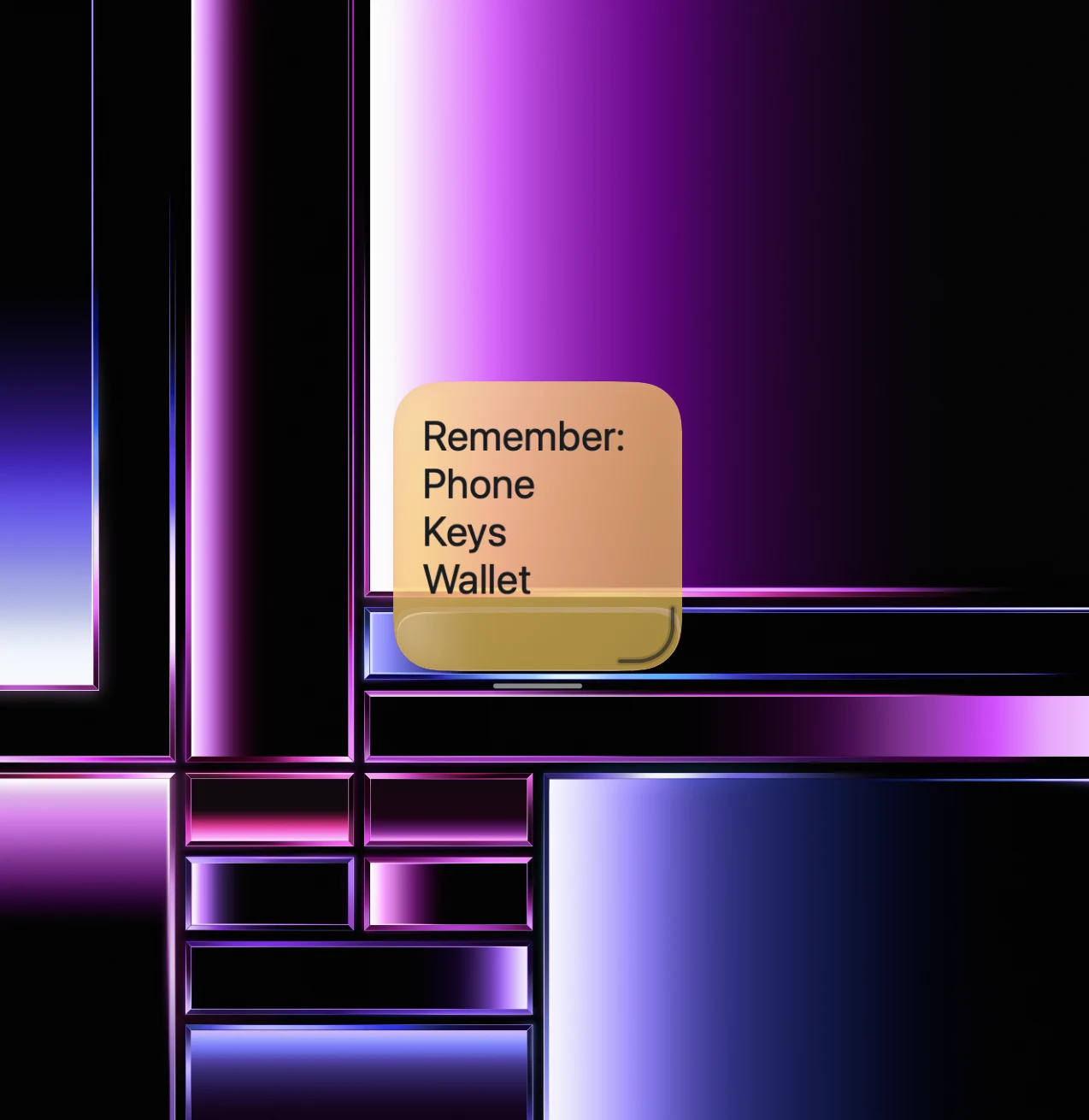
Each note has its own colour, text size and position. Choose from seven colours, move it beside your other widgets and resize it freely. Lock a note’s position once it is where you want it.
Make the note fit your layout.
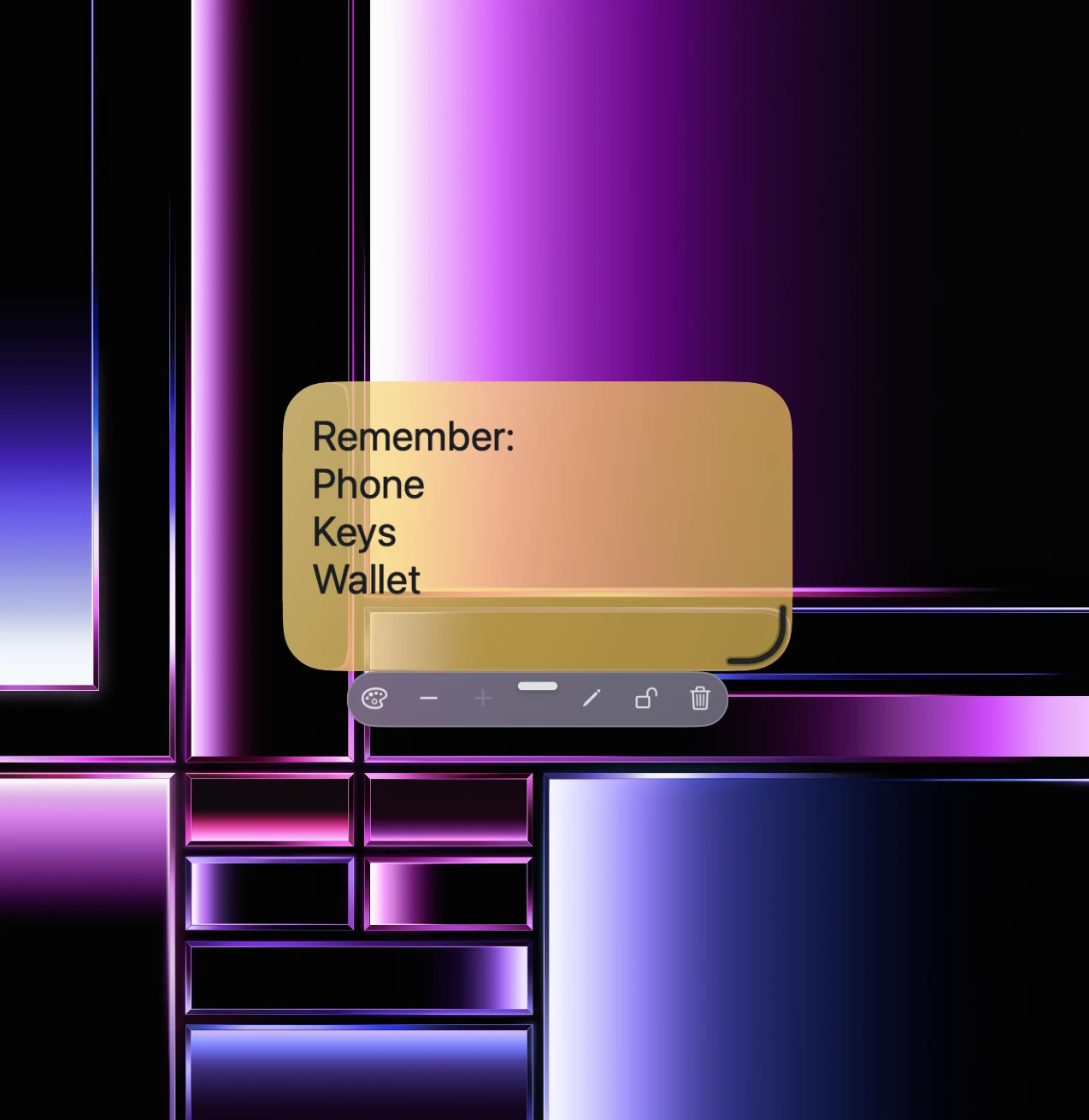
A wide note leaves room for more text; a compact one can sit beside a clock or photo widget. Use the controls below the note to change its appearance or edit it. These screenshots show the actual widget, including its toolbar, resize handle and colour choices.
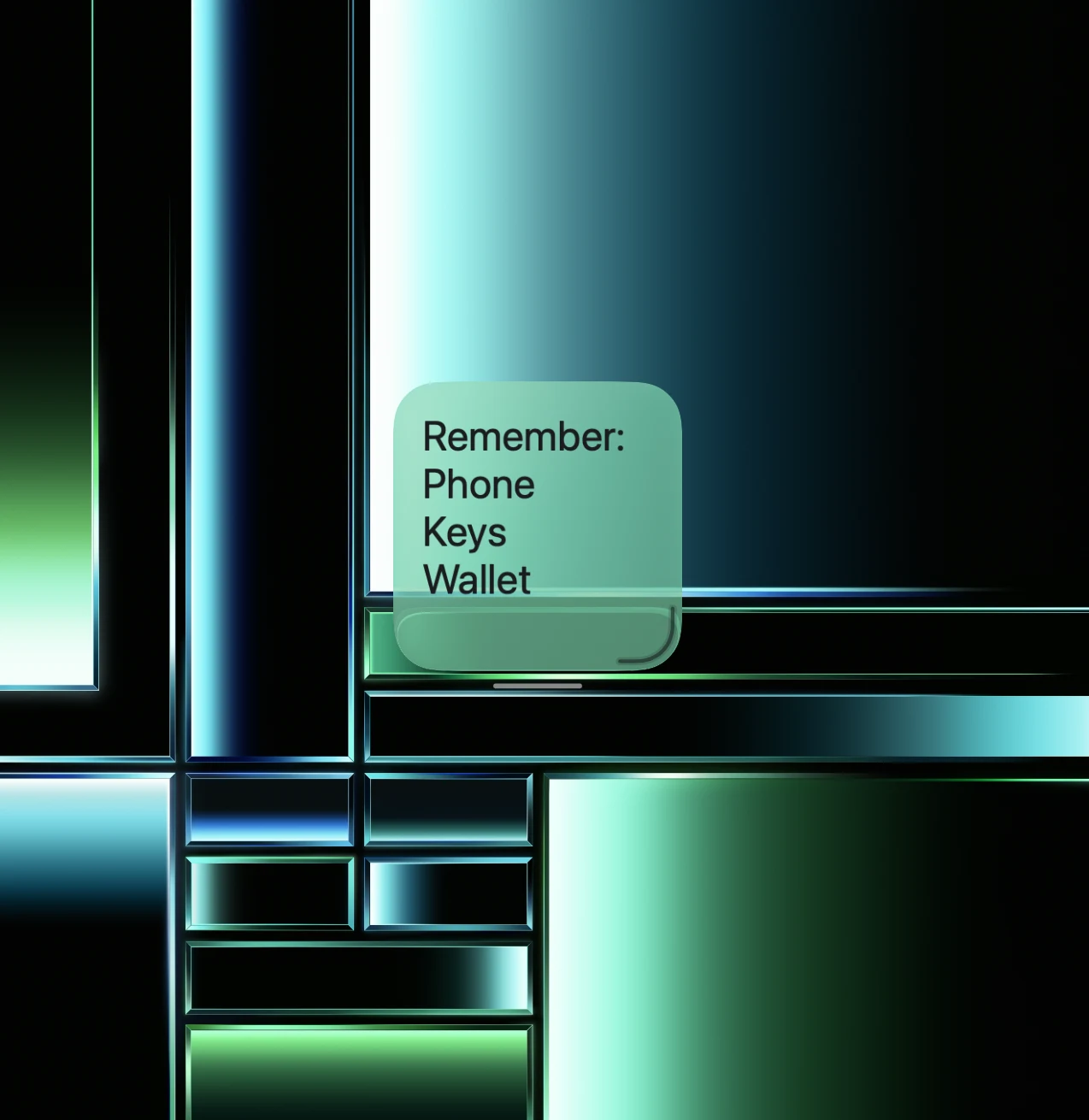
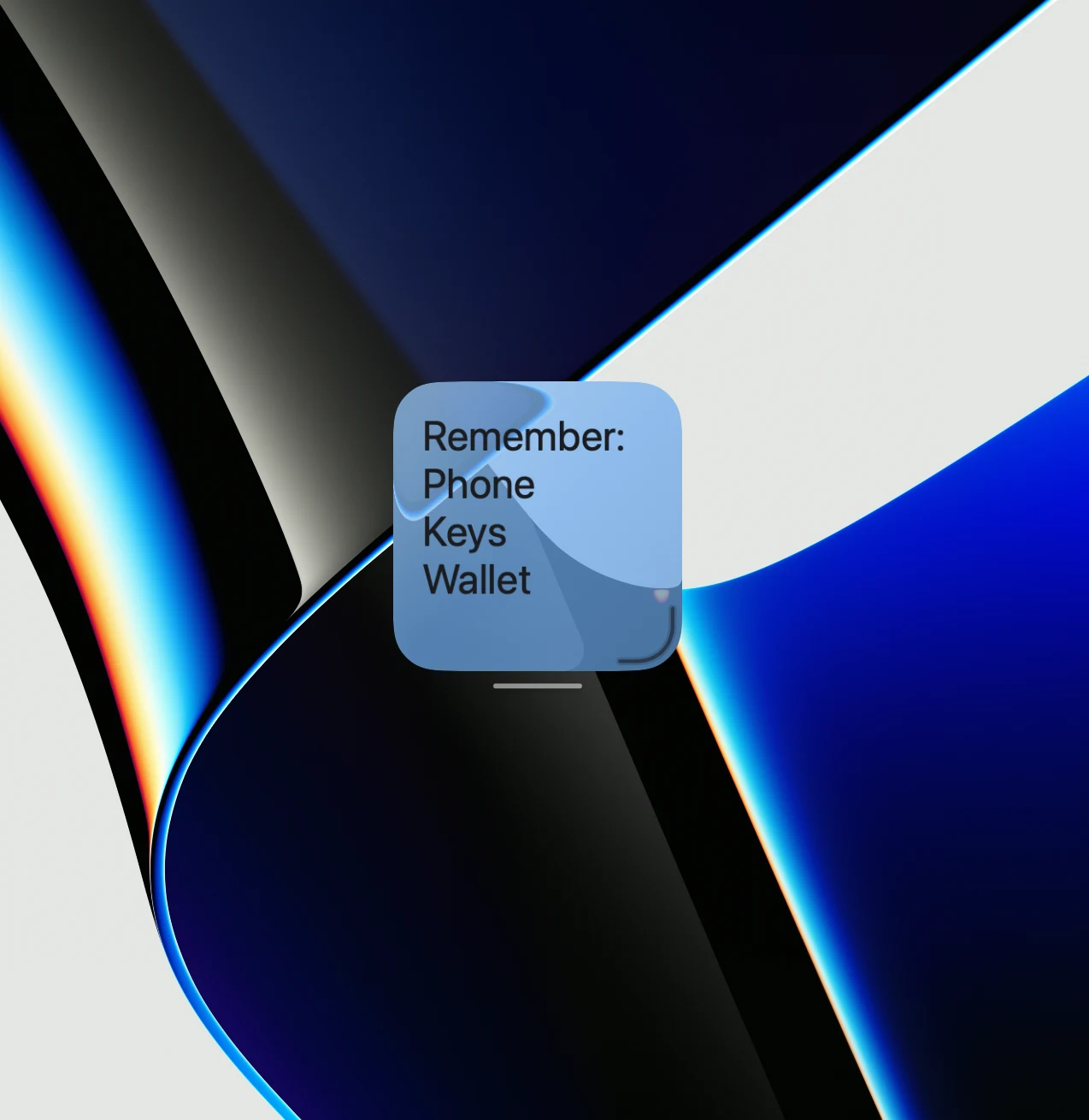
Add your first lock-screen note.
- Download and open WidgetScreen on macOS 15 or later. Activate Premium to use Sticky Notes.
- Add a Sticky Note in Layout Studio and write the text you want to keep in view.
- Choose its colour and text size, then move and resize it to suit the layout.
- Press Control–Command–Q to check the note on your locked Mac. You can use WidgetScreen’s on-screen keyboard to edit it while the Mac stays locked.
- Lock the note’s position when you are happy with it. Keep WidgetScreen running so your widgets appear when you lock the Mac.
Leave the macOS clock and sign-in area clear. For help arranging notes alongside other widgets, follow the Mac lock screen setup guide.
What to know before you download.
- Are these Apple Notes or desktop Stickies?
- No. These notes are created in WidgetScreen for your lock screen. They do not display your Apple Notes library, and they disappear with the other widgets when you unlock your Mac.
- Can I type while my Mac is locked?
- WidgetScreen provides an on-screen keyboard for editing a Sticky Note while locked. You can also write your note in Layout Studio while the Mac is unlocked.
- Is Sticky Notes free?
- Sticky Notes requires the optional one-time Premium purchase. You can download the core app for free to try the layout with widgets such as Now Playing and Photos.
- Who can see a lock-screen note?
- Anyone who can see your screen can read the note you leave there. Choose text you are comfortable displaying when you step away.